Whenever I try to use the “Safely remove hardware” option in windows to remove the hard drive installed in the modular bay of my laptop, I get the following message:
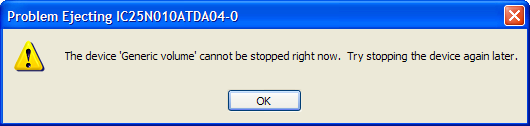
As far as I could tell, nothing was actually using the drive. I’m only using it to backup files on at the present time.
I disabled Windows indexing, thinking that a system process had the device in use, but that didn’t make a difference.
So I downloaded Filemon for Windows from http://www.sysinternals.com hoping I would be able to see what file was open on the device.
Well wadda ya know … turns out Norton Utilities “Protected Recycle Bin” had the doggone thing open.
When I turned OFF the Norton extensions on the recycle bin for drive D:, I was able to stop the device and safely eject it.
you rock! i’ve been shutting/rebooting my computer to get around this issue and after a few months, it’s nice to see your post – it works…thanks!
so i’m having this same problem and i don’t know anything how to fix it can you help me out and maybe guide me.
did you try david’s suggestion above to make sure Norton Recycle Bin is disabled for your external drive(s)?
Well that’s a nice answer but I don’t have Norton, and I did a search to make sure. JR
Great tip! Thanks.
got it. do you already use the utliity Filemon to see what processes are keeping your device busy? I personally didn’t have to use the utility as Norton was the culprit.
FWIW: I’ve uninstalled Norton protected recycle bin as I wasn’t using it.
Thank you very much. I have been plagued with this for some time and this solution is spot on. Thanks – Billy
Utterly irritating. I’ve recently switched from Windows 2000 to Windows XP and found I can no longer unmount my USB flash disks, they permanently “cannot be stopped right now”.
It’s a Jessops CF card reader with a 64mb CF card, incidentally. I’ve been monitoring the drive with Sysinternal’s FileMon tool (the next best thing to SnoopDos available on Windows) for quite some time, and can see no reads or writes whatsoever to the disk in question. No Norton Utilities here of course, and I’ve verified that System Restore isn’t monitoring the CF disk in some misguided attempt to be useful. This is getting to be quite frustrating.
The device is also “Optimized for quick removal”, which is laughable given my current predicament, but at least means the Write Caching is disabled and the device should be removable. I’m not keen to just pull the device out as this led to corruption on the card once before, and I’m not happy about losing the data on it.
So I’ll probably have to restart the computer to get this disk out of it safely, then forget all about it until the next time I connect the disk.
Total frustration has now set in, after almost an hour of fiddling around with it. I’m loving this Windows eXPerience… really, I am.
Homer: “And in case you didn’t realise, I was being sarcastic.”
Marge: “Well, duh.”
I’ve been having this problem with my external drive that I use with my laptop. I don’t have Norton installed, but the drive still won’t stop. I don’t see anything in Filemon that should be accessing it, and the write light isn’t flashing. I’ve tried shutting off the drive, then disconnecting it, and I’ve tried disconnecting then powering down. The problem with this is the drive doesn’t like to come back up on the next plug in. It goes through various driver related “Please wait while windows configures your new hardware” notices but the drive doesn’t show up and cannot be accessed. I don’t want to have to shut down to remove the external drive. Please help!
Is your external connected via PCMCIA, USB, or firewire?
What make and model is it? Have you tried contacting the manufacturer?
A problem with XP (I don’t have Nortons on my comp so that wasn’t the problem) is that you can set ‘policies’ for the USB drive. If you want to change them then go to the drive’s properties ie right click and choose properties then go to hardware and select your generic storage device and go to the properties. Uner this there is a policies tab. Here you can check if the device is optimised for performance or quick removal. If optimised for quick removal you get the error message that has been plaugin so many of us. If you choose to change it to performance then you need to make sure that you disable the device before you remove it. I think that the device shouldn’t be harmed if you remove it when optimised for performance if you don’t disbale it. Don’t hold me to that though and I am not game to try it. But if someone has an old usb drive they can afford to kill I would like to hear if they can just plug it in and pull it out a few times under these settings. Any way I hope this helped you out.
You Rock, it was norton. Thanks so much
I have reinstalled winXp fresh and the first time I plug in my USB drive it can not be stopped right now, so there must be something else fundamentally wrong.
Having read nathan’s comment (#12) I checked the hardware property and it is clearly written when optimized for quick removal device can be removed w/out using Safe Removal Icon.
There you go!
Nice post.
I have a strage problem with an externel USD HDD. Sometimes, the device is not rcognized by its name. The name of the device is SAMSUNG, but the name displayed into the device list is SAESUNG. Of course, I cannot read or write it. Few days later, the correct name does appear and I can use for several minutes.
thak you
I don’t know how to thank you.. I could not have figured out that that was the problem even though I thought for zillion years.. You saved me, let there be someone to save you in your hard times too.. Cheers..
well i do not have norton utilities but i found that if you have a window open for that ext drive that i would usually get the same error message that it cannot be stopped and once i closed all that windows and or app i may have executed from that drive then all is fine. you see if an image [from ext drive] is mounted to say daemon tools you don’t have to be writing or reading from it but just the fact it’s open can cause this error which it took me a while to figure out was one of my recent culprits. so for some of you that do not have norton and you still get this problem i hope my post helps.
I tried the advice of that one previous post dealing with what settings the drive has and it solves the problem. When it was optimised for quick removal the drive gave me that error “Generic volume cannot be stopped” once i switched it to performance it works perfectly fine, no errors at all when I try to stop it.
Hey there, I was surfing and came across a thread discussing the same issue. One of them recommended a software to “unlock the file handle”. I’ve used it and it works 😉 Hope it will help you too.
Here’s the thread. http://djlizard.net/2005/08/04/66
And here’s the freeware. http://ccollomb.free.fr/unlocker/
Cheers.
so if it is set to optimize for quick removal than i can just pull the plug whenever?
Craig: Yes.
I went through all of this, turning off Norton’s recycle, etc. It finally worked when I went into policies. Optimized for performance was checked and greyed out, but when I turned off write caching under optimized for performance, I was able to get the safe to remove message. Don’t know if this will be a reliable solution, but it worked once.
I have found that if whatever program accessed the USB device then that program must be closed before Windows will grant the safe removal….that includes Outlook or any other e-mail client.
had the same problem, followed the advice of changing the drives setting for performance still didnt work, simply put i had the explorer window open still from the drive, this was enough to to stop it from stopping.
Stop all programs or windows that pertain to the drive in any way and it should close 🙂
I had the same problem I just search for any additional protection software then I found the the HP Pc protection is running, after closing the software it worked normally
was messing around w/ the policy settings. It worked one time for me, then after that, it did not work anymore. filemon did not show anything…
I have the problem of not being able to “safely remove hardware” but do not have Norton. I use AVG, and tried disabling that (and Zone Alarm), to no avail. Then i decded to search my system Registry for “Symantec” and actually found a number of hits. So … it looks like my computer may have come with Norton on it, 4 years ago, and I have replaced it with AVG and forgotten. I would have uninstalled Norton first, but in my expereince Norton never really goes away 100%. So I ran Symantec’s uninstall tool (SymNRT)which removes all traces of Norton AV and Norton Secutiry, versions from 2006 back to 2003, and guess what? – I can now “safely remove hardware”. Thanks ever so much for pointing me in the right direction. I have a few other computers to run SymNRT on now.
I had the same problem…usb drive would not release…no norton stuff…in my case it was AVG anti-virus that was hanging it up…shut that off and the usb drive released instantly after an hour of not releasing.
Aha! Thanks, turning off Outlook worked! Why on earth was it accessing my usb drive anyway? What a horrible program.
Thanks! Only correct answer I could find anywhere!!
In my case,closing the outlook worked in removing the USB device safely.Thanks for all the comments….
Well thats what you get for using Norton’s i suppose. It’s a virus in itself
I wanted to report that the answer about “any AV” is probably correct! After weeks and weeks of trying to find an answer, yours was right-on. I have PC-Tools, and when I exited from it, I was able to disconnect my MP-3 player without the message finally. THANKS!!!!!
Real simple way to fix this is open Windows Task Manager ( Cntrl alt del) and select the processes tab. Find explorer.exe and right click on it and select “End Process” you will notice that the task bar disapeared and all of the finder windows closed… Great! that means it worked… now select file above the process tab and chose “New Task (Run…)” and enter “explorer.exe” and hit enter.
Now go eject your drive in the task bar using the “Safely remove hardware” green arrow.
-Lee
> Find explorer.exe and right click on it and
> select
I have been having problems with USB stick and USB MP3 (my MP3 is now u/s after being unable to stop the device and removing it anyway. I’ve found simply that shutting down all programmes like Excel and Word that have accessed the USB alows me to shut down the device. This is probably not the root cause of everyones problems but is possibly a good starting point.
Nathan you are a superstar, your solution worked for me and for months I have lost data unplugging as it was optimised for quick removal. My disk is safe now and also much much quicker.
Thanks
To All,
Each of these resolutions is good for specific issues with the iPod not disconnecting but doesn’t work for all. For example, it didn’t work for me with a second hand iPod that I tried to connect to my friends PC. The PC had iTunes, but told me that the software for this particular iPod was not installed and to install it. I didn’t have time for that and just wanted my iPod back. I figured out the problem and put the fix below. It also works if you are still having troubles disconnecting your iPod and have tried the above eject methods. This works if you are running Win2k or WinXP.
-Right click on My Computer
-Click Manage
-From the list on the left click the plus by “Services and Applications”
-From the new list click on “Services”
-Now on the right find the entry which says “iPod Service”
-Right click on that entry and select “Stop” from the menu
-Windows will shut the service down, it might take a minute.
-Now you can safely eject your iPod, you should also notice that most of these issues are caused because the iPod service does not release the iPod from sync even though it may not be acting on the iPod at that time. The sync icon on the iPod will disappear when you stop the “iPod Service”
Word!
Lots of thanks for that. Stopped a massive pain and irritation.
Well, I had the same problem, tried most of these suggestions, and finally got ‘er taken care of using Durran’s suggestion. I don’t have Norton, and am not smart enough to find the process accessing the drive using procmon.exe, but I stopped the iPod service, and was able to remove my external USB (Maxtor) hard drive (it is in performance mode, by the way).
I don’t own an iPod, not sure why that service affects my USB drive, but perhaps it’s an iTunes thing (I do have music on the drive).
I had the same issue with two different USB thumb drives.One is an old drive.
I ran Filemon even though this is a new build of XP and I never used Norton. I did find a utility I had installed that was indeed accessing the drive periodically. Once I excluded the drive from the utility all was well again. Try that suggestion but you may have to set the filters to look only at that device since there is alot going on. You also can find Diskmon with that link, which is another pretty nice utility.
I was having the same problem. I have a Western Digital external hard hrive, the “MyBook”. I do not have Norton.
If there are any programs open that used the MyBook drive, I have to close them before I can stop it for removal.
Example… I plug in the MyBook hard drive and open a file stored on it using Photoshop. After editing the file I resave it, minimize Photoshop and and click on the Safely Remove Hardware icon. It will tell me it can’t stop it right now and to try again later. I have to exit Photoshop, cick the Safely Remove Hardware icon again and now it will work normally.
Hopefully this will help some of you.
Hi all solve it with this little utility that is free a free utility to download.
http://www.reviewingit.com/index.php/content/view/15/2/
Try this one http://safelyremove.com. This toolz replaces Safely Remove Hardware icon & you’ll never see this annoying window. It can shows you instead all the programs locked USB device. As for me, I like this utility because it free me from another annoyance – it allows to hide USB devices (like SATA drives) from the stopping menu.
Changing to Optimize for Performance worked. Thsi has been driving me nuts for awhile now so it’s great to find something that worked! Thanks mucho!!
To those people who do not have Norton but experiencing the same “Safely Remove Hardware” issue with their USB HDD try following:
1. Right click on Recycle Bin, go to Properties.
2. Check box for “Configure drive independently” option.
3. Click the tab with your USB HDD (usually last one).
4. Check the box with option for: “Do not move files to the Recycle Bin. Remove files immediately when deleted”.
NOTE that files deleted from the your USB HDD drive will no longer move to your Recycle Bin, but will be deleted permanently.
Good luck
Ligner
Another solution: if you have Diskeeper (defrag utility), try shutting down DKPerf.exe. My USB Disk could not be stopped before I killed that process.
autojohn your suggestion of turning off avg anti virus just saved me from a long and tiring night thanks
I did the ‘recycle bin’ posted by Ligner on June 30th, 2007, and it did not make a difference.
WTF?
This worked well for me. I ran FileMon while trying to stop the device, and it told me that crypserv.exe was accessing it. I did a little research and determined that this application is only useful for programs with a trial period. If you don’t want or need to use the programs you have on your PC, go ahead and end this process via Ctrl alt delete. I shut mine down with no ill effects, and my drive was safely removed.
PC Tools Antivirus is also a culprit, had to turn it off and then take the my USB key out. What a croc of BS for this to happy har!!!
Anyone else got an alternative for a virus/proctection software that doesn’t lock up the USB key or other devices?
Do tell! Thanks in advance. 🙂
In my case, I couldnt stop the USB, and dont have Norton running. However, I had just saved a Word document, and realised that Outlook was the culprit. Why? Because Outlook is using Word as my email writier. So having Outlook running means the USB thinks Word is still running. I turn off Outlook, and bingo, the USB stops immediately.
I have tried many of the suggestions here, and while I am running Norton AV, the suggestions did not work. Tried Lee’s suggestion of closing explorer.exe in the Task Manager and then starting it again and it worked great! Thanks for solving a really annoying problem.
Liz on September 18th, 2006
I wanted to report that the answer about
i am using Mc Afee…i am having the same problem sice long…i thought going to the device manager and uninstalling the drivers might help…no go…i usually turn off the computer to get rid of the problem…i even reinstalled the OS for this problem…please help
FYI — I encountered the same thing recently with Quickbooks 2008, used in a multiuser environment. Basically QB Database Server Mgr was locking all attached drives and monitoring for QBW files and wouldnt let an external FireWire device “eject” or unplug.
Valnomien – You’re the greatest; you just relieved my splitting headache. Thanks so much.
Hello everyone!
Same issue here and it’s been driving me nuts. I downloaded the trial version of “safely remove” software (mentioned above). It told me that a Musicmatch file was preventing the close. I stopped the mim.exe file in windows task manager and was able to remove safely.
Hope this helps someone!
Lora
hi all,
i’ve tried everything, after using ‘safelyremove’ i was able to stop the external hdd. but when again plugged, the same result. i was able to stop the external hdd by using dos prompt and run chkdsk [drive]:x. X means it will fix/delete errors.
Hope this help.
Edwin
Great 🙂 I tried that FileMon tool. As soon as I tried to stop my usb drive a bunch of errors popped up in filemon letting me know exactly which process caused the error [tsvncache.exe].
In my case I had to kill tsvncache.exe.. after that the USB drive behaved itself.
To kill the device hit control-alt-delete -> go to the ‘process’ tab -> find the process mentioned by filemon.exe -> click end process. Don’t blame me if you stuff up your system doing this. If you don’t know what the process does then don’t do this.. In fact if you don’t know how to end a process then you probably shouldn’t be !
I was hoping that the problem would be Norton because I have the AV but nothing changed when I disable the autoprotect (sorry if I’m a bit blur in all this, but how do you turn OFF the Norton extensions on the recycle bin for the drive which is used by the external HD anyway? I sure didn’t see any option setting anywhere, so the logical thing was to disable at that time)
So I adjusted the Recycle Bin’s setting to
I have a WD 2.5″ backup drive.
I couldn’t remove the drive without shutting down each & every time. I tried every suggestion, Norton wasn’t anywhere on the system, the drive settings, looked at files running with filemon, none worked except the suggestion to install & run “unlocker”. That showed me that MusicMatch was the culprit!
http://ccollomb.free.fr/unlocker/
I have had trouble getting permission to disconnect my MyBook 500 backup hard drive (optimized for quick removal), and it turns out that the Norton protected recycle bin was the culprit for me. Thanks so much for the tip. With my version of Norton, if you right click the wastebasket, and go to properties, you can manage each drive separately, so you can keep the Norton recycle bin on the C drive, but remove it from the backup hard drive. (Each drive has a different tab.)
Update: Somehow Norton has taken back the recycle bin on my back up hard drive. Perhaps it re-establishes control after a full system scan.
For my WD Passport(portable harddrive), I right-clicked for Properties->Hardware tab-> there were 2 disk drives:
1. WD 1200BEA External USB Device: I went to the properties -> Policies and made sure the option is on ‘Optimize for quick removal’. This was the suggestion from many people and it didn’t completely help.
2. STxxxxxxxA: I went to the properties->Policies-> apparently, ‘optimize for performance’ was selected and greyed-out. Here, I turned off ‘Enable write caching on the disk’.
This helped me clear the problem. I don’t know why this portable harddrive shows 2 disk drives? I hope this reply helps few people … check individually all the disk drives in your harddrive and make sure the ‘write cashing’ is disabled for each one of them.
My thanks to all of you for your wonderful solutions. Some of them worked for me. I wanted to pass along how I solved the problem when the USB device would not stop DUE TO a “program still accessing it.” Instead of shutting down explorer.exe in the Task Manager area, just open Windows Explorer (usually at C:\Windows\explorer.exe) and immediately close it without clicking on any files. Then try stopping the USB device. This worked for me for a Western Digital 500 GB hard drive. Hope it helps someone.
I downloaded USB Safely Remove. It showed me that the Norton Ghost Administrative Service had the drive open (even though there was no backup running) I stopped the service, and the drive could then be stopped. I re-started the service, and Ghost complained – but I’ll have the drive switched back before the next backup (I use the same drive for two systems).
Thanks all!
Norton recycle bin was the problem in my case. It was the first thing I tried. Recommend trying recycle bin first and then other norton programs.
I disabled System Restore and it worked for me.
Right click on My Computer
Go to Properties
Go to the System Restore tab
Select Turn Off System Restore.
does a virus has something to do with that message?
I don’t think so, Joyce.
I downloaded a program that can stop the processes running in your HD (it turned out to be the indexing)
http://ccollomb.free.fr/unlocker/
It is a common issue when some antivirus programs is taking your device to buisy state
I recommend you USB Antivirus. It has an unlock option. You can read a full review at http://www.thereviews4u.com/index.php/Software/Autorun-Virus-Remover.html
This application just dismount the USB pendrive so it can be removed with out issues. There is a free demo so you can give it a try.
Besides has many other tools very usefull.
Thanks, I hope this can help anyone.
Thanks very much for this advice – Filemon helped me immediately. An svchost.exe process was constantly accessing the USB drive, but Filemon told me its PID and when I stopped that process from the Task Manager I could then stop the USB drive.
Updated link is here:
http://technet.microsoft.com/en-us/sysinternals/bb896642.aspx
I had this problem with several external drives (External USB Hard Drives & Thumb Drives).
For several years, This is what I did each time it happened to a drive & it didn’t happen again on that drive after each reset.
I suggest making sure the drive is set for optimal use:
To do so:
Open My Computer and right click on the drive
Choose “Properties”.
Go to “Hardware”
Select the removable drive
Click Properties and go to the “Policies” tab
Make sure that the drive is “Optimized for Quick Removal” (<— this is not the one to check mark, it is the other one, if you wish to use the “Safe to Remove” little green arrow)
Click Ok, Ok,
Your computer will want to reboot if you change this setting, Let it.
Then you can remove safely.
Good Luck! n “Don’t Forget Ta Have That Fun”
My problem was in the ISO image i mounted from USB mass storage device!!!
Some times i forgot my name, any way thanks….
Here is a new one to add to the list. I had the same problem. I could not safely remove a flash drive getting the message that it “could not be closed right now.” I tried closing everything on my desktop one by one and testing safely removing afterwards. Once I closed Outlook 2003 it allowed me to safely remove my flash drive.
Try the following:
-go to My computer
-right click then select properties
-select hardware tab
-select disk drive
-from the list, select your usb drive
-go to the policies tab
– on the “write cahing and safe removal,
– select “Optimize for quick removal.
-select OK
i hope this helps.